Tools
AI Assistant uses tools to perform actions on your behalf. Each tool handles a specific type of operation within Directus.
AI Assistant discovers system tools on demand: it searches the available tools and loads only the details it needs for the current task. This keeps tool definitions out of the context window until they are needed, leaving more room for your conversation, schema, and results with any model provider. You still configure approvals and availability for each underlying tool individually.
System Tools
These tools interact with your Directus instance via API to manage content, files, and schema.
| Tool | Description |
|---|---|
| Schema | Explore collections, fields, and relationships (read-only) |
| Items | Create, read, update, and delete items in your collections |
| Files | Manage file metadata, import from URLs, organize uploads |
| Folders | Create and organize folder structures for files |
| Trigger Flow | Execute manual flows on demand |
Admin Only
| Tool | Description |
|---|---|
| Collections | Create, modify, and delete collections (database tables) |
| Fields | Add, configure, and remove fields within collections |
| Relations | Set up relationships between collections |
| Flows | Create and manage automation workflows |
| Operations | Configure individual steps within flows |
Page Context Tools
| Tool | Description |
|---|---|
| Read Form Values | Read current field values from the form on screen |
| Set Form Values | Update field values on the current form |
Tool Behavior
Approval Modes
Each tool can be configured with one of three approval modes:
| Mode | Behavior |
|---|---|
| Always Allowed | Execute immediately without asking |
| Needs Approval | Show approval dialog before executing (default) |
| Disabled | Tool is unavailable to AI and excluded from tool discovery |
Tool approval settings are stored locally in your browser and are unique to you. They won't sync to your Directus instance or affect other users.
Default Settings
All tools default to Ask mode. Nothing executes without your explicit approval until you change the settings.
Configuring Tools
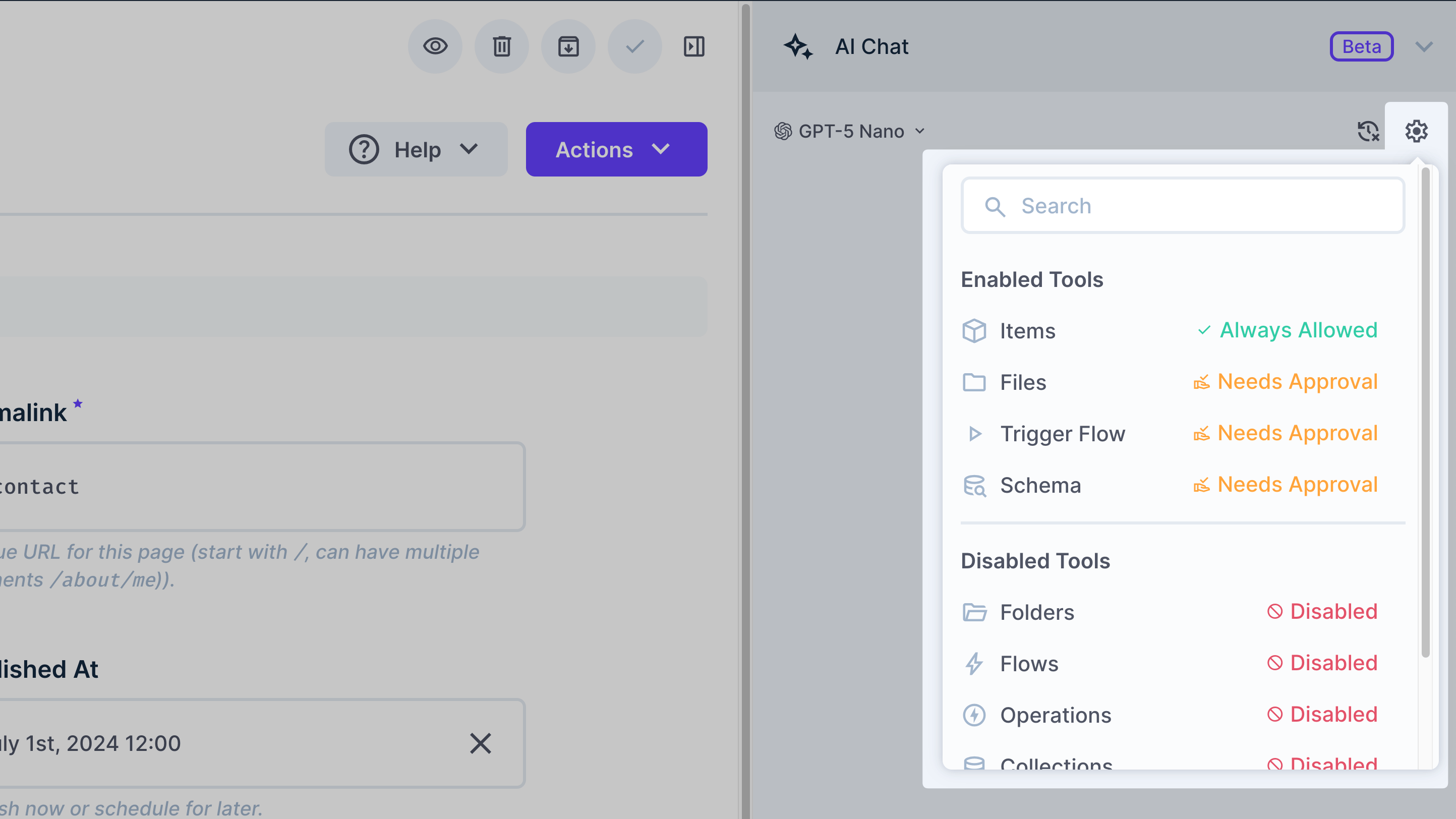
- Open the settings menu (gear icon) in the chat header
- Search for specific tools
- Click a tool and select an approval mode from the dropdown
- Settings persist in your browser
Next Steps
Get once-a-month release notes & real‑world code tips...no fluff. 🐰